
Webmin – the most useful Linux tool that you will ever use
Webmin available from www.webmin.com is a web based GUI that makes configuring a Linux server a snap. I first discovered Webmin back in 1999 and have been using it ever since. The web interface of Webmin is intuitive and is a lot more fun than editing text based configuration files. Although from experience you will…
Webmin available from www.webmin.com is a web based GUI that makes configuring a Linux server a snap. I first discovered Webmin back in 1999 and have been using it ever since.
The web interface of Webmin is intuitive and is a lot more fun than editing text based configuration files. Although from experience you will still need to edit text based configuration manually from time to time, especially if Webmin doesn’t have a module for the service or application you want to use.
Download Webmin from www.webmin.com/download.html. Download the package that is most suitable for your network. This article is intended for Debian/Ubuntu, so will deal with the .deb package.
Log onto your Linux machine, and use WGET to download the latest version of Webmin.
The command that I used was;
wget http://prdownloads.sourceforge.net/webadmin/webmin_1.360_all.deb
Before we can install the Webmin package you will need to ensure that all the requirements for webmin are met. This means using Apt-Get to download and install some packages.
Use the following command to ensure that all of the dependencies are met.
apt-get install libnet-ssleay-perl openssl libauthen-pam-perl libio-pty-perl libmd5-perl
Use the dpkg command to install the Debian package
dpkg –i webmin_1.360_all.deb
The following message will then be displayed;
Webmin install complete. You can now login to https://server1:10000/
as root with your root password, or as any user who can use sudo
to run commands as root.
On a machine with a web browser, connect to the address that was specified. Internet Explorer or other browsers may winge about an insecure certificate – you can ignore this and continue to the Webmin site.
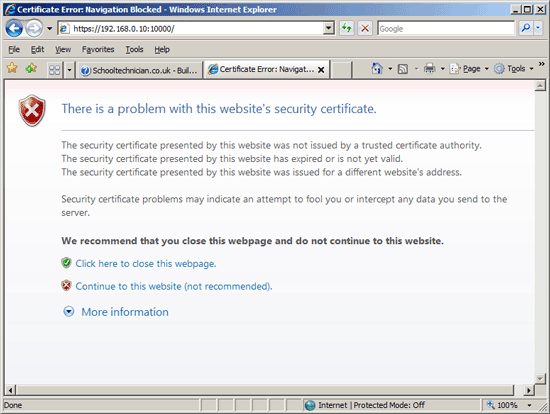
Internet Explorer 7 displays an error about the certificate, this is because the SSL certificate can't be verified against a root certificate authority. You could buy an SSL certificate if you really needed one.
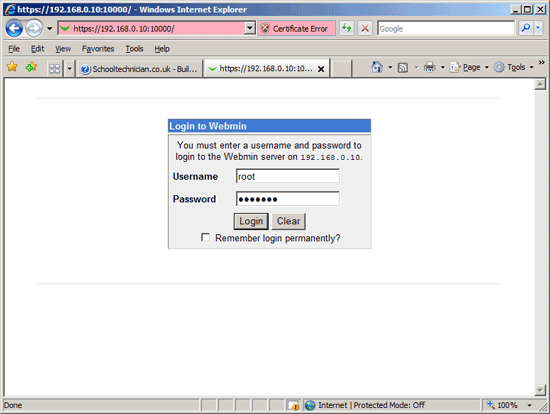
Once past any certificate or connection issues, you should see the Webmin logon form. Enter your details to logon. I have used my root username and password, although for security reasons you should never use root if you can help it.
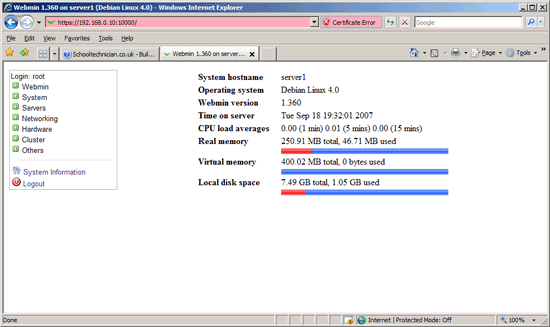
When logged in you will be presented by the System Information page. This page contains details about the Linux server, on the left of the page, you will find a menu that takes you into the various modules of Webmin.
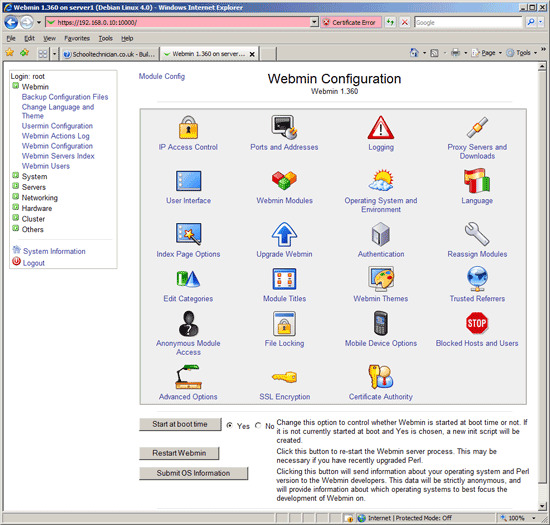
From time to time you may need to alter the configuration of Webmin, install new modules or change access rights. Do this by using the Webmin – Webmin Configuration menu option.
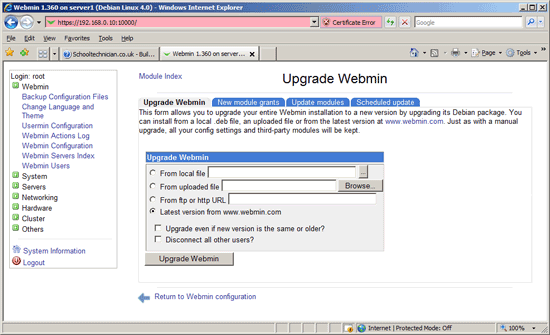
The authors of Webmin, produce upgrades quite regularly. Use the Webmin Upgrade module to keep Webmin upto date with all the latest modules and settings.