
FEAD Optimizer Extract Tool
It has finally arrived. Introducing the FEAD Optimizer Extraction tool. This tool is designed to allow the quick extraction of a FEAD Optimized installer application such as Acrobat Reader. I am surprised that NetOpSystems who make FEAD have not developed an application for network administrators that will allow easy extraction of the proprietary compressed files. …
It has finally arrived. Introducing the FEAD Optimizer Extraction tool. This tool is designed to allow the quick extraction of a FEAD Optimized installer application such as Acrobat Reader. I am surprised that NetOpSystems who make FEAD have not developed an application for network administrators that will allow easy extraction of the proprietary compressed files. It would have been a simple application to make, believe me, there is a huge demand for such an application.
As the world is FEAD-up of waiting, Schooltechnician.co.uk has developed an easy-to-use tool that will allow the contents of the FEAD archive to be extracted to a specific location. This eliminates the need to use tools like Filemon or to delve into the command line.
The tool works by simply running the Installer with some command line options. Hey presto, you will now be saving hours of time when installing applications using Active Directory and other application deployment methods.
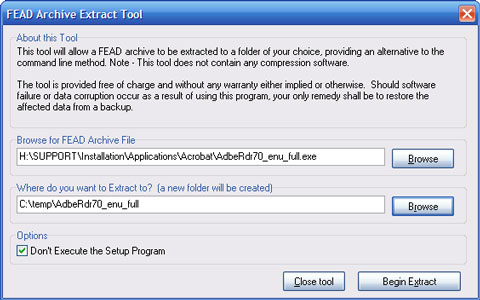
As you can see, there is a button to browse for the application you want to extract. There is also an entry box to type or browse to the location where you want the files extracted to. When ready, click on the extract button.
The extract location will automatically create a new folder for the extracted contents of the archive. So if you are extracting Acrobat Reader (AdbeRdr70_enu_full.exe), the tool will save the files into a folder called AdbeRdr70_enu_full. So, if you choose c:\temp, the folder called C:\temp\AdbeRdr70_enu_full would be created.
When the Extract button is pressed, the FEAD Optimizer will begin extracting the files to your chosen location. In some cases, after the files have been extracted, an error messages will be displayed. This error message can be safely ignored.
The tool is distributed as FREEWARE, and you can redistribute to whoever you want. There is no limitation placed on the use of the tool, so Schools, Companies and Governments can use the tool free of charge whenever they like. You can download the tool from the Files section of this site.
