
Defragmenting Tools
The more senior computer administrator will remember the old black screen days of DOS and will remember the first Defragmentation tools that became available. Of course back then Defragging a hard drive was quite a novel idea. I have fond memories of using the Symantec Defrag tool for the first time. It had a blue…
The more senior computer administrator will remember the old black screen days of DOS and will remember the first Defragmentation tools that became available. Of course back then Defragging a hard drive was quite a novel idea.
I have fond memories of using the Symantec Defrag tool for the first time. It had a blue background and yellow characters. I just couldn’t believe that my data was as messy as it was. The first time I defragged my 20Mb hard drive it took ages to do. It was quite hypnotic watching the cursor jump from one place on the screen to another. Watching the data getting stacked up near the inner part of the drive.
By the time MS-DOS 6.0a arrived on the scene, defragmenting had become a feature of the Microsoft operating system, with the tools integrated into the OS.
With the advent of Windows, faster computers, bigger hard drives, and files that are full of bloat, defragmenting is something most people will have heard about but something very few home users will actually do. The tools are hidden away, with no encouragement from the Operating system to use them.
Since Windows 95, the incorporated defrag tool has always done a good job of tidying and re-joining those files that were broken into pieces. The interface has changed too. Windows 95 had a never ending scrolling screen of blue coloured boxes, Windows 2000/3 introduced the a set of bars that never seem to change colour, Windows Vista and above don’t bother showing you anything.
The technology behind defragmenting has also changed with programs like Diskeeper and O&O Defrag constantly evolving to provide the quickest and most efficient way of tidying the disk. Whilst the methods have changed, the goal is still the same – to reduce the amount of fragmented files on the hard drive.
One of the biggest drawbacks of defragmenting is that you need to be at the machine to start it going. In large schools, defragmenting machines would take an awful lot of man power and time, so the potential benefits from defragmenting are lost.
Here are some Windows Defrag tools that I have used over the years which you might find useful.
WINDOWS DEFRAG
The first tool we are going to look at is the good built in Windows defrag. Whats that I hear you should – it can only be ran whilst you are sat at the machine? Well yes that is true, however you only actually need to have the privileges to run the program and the computer has plenty of privileges to run itself. Lets look into this.
To run a defrag on Windows you need to start the Windows defrag GUI. There are loads of ways to load it, but they all end up running in the MMC (Microsoft Management Console) as a snap-in. Did you know that there is also a command line method to start the defrag?
Just drop to the command prompt and type
DEFRAG C:
This will start the defrag tool running in command mode. It doesn’t say much whilst it is running, but will achieve the same results. You can stop the tool from running by pressing CTRL+C. You can schedule a defrag using the old AT task scheduling tool, although modern Windows will automatically decide when it needs to defrag. Also there is no point in Defragging an SSD drive as this will cause unnecessary wear.
O&O Defrag
I have been using O&O defrag for a number of years, it has an intuitive interface and a number of different defrag methods, that allow a Stealth, Space and complete defrag. In all there are 5 methods. I started using O&O defrag on my NT4 server and have kept using it ever since.
Unlike the Windows tool, O&O displays a large image of small squares that represent the disk surface, colours further highlight the levels of fragmentation. Clicking on the squares will reveal what file is hiding in that square. I find this view of the drive and level of fragmentation to be very similar to the old DOS defrag programs. It is sort of relaxing to see your data moving around the hard drive.
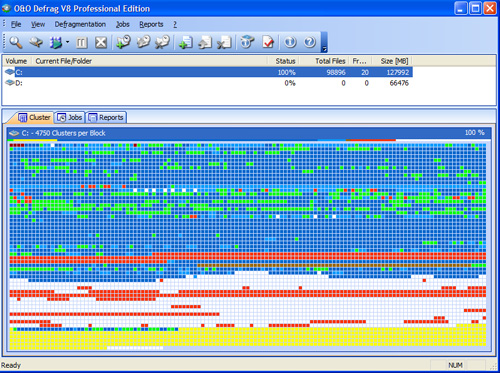
O&O Defrag comes in 2 different versions. There is the professional version that runs in standalone/single station mode and the Server version that provides defragmentation for file servers and also a management console that can be used to defragment individual workstations.
The defrag tool runs as a Windows service and is capable of automatically defragmenting your hard drive with no user interaction. It takes just one click and O&O will do the rest, automatically working out which is the best method to reduce the levels of fragmentation. There is even a screen saver mode, so your computer will defragment whilst no-one is using it.
Newer versions of O&O support the Windows layout.ini file that define which files should take priority on the hard drive. Therefore files that are most needed by the operating system will be moved to the fastest part of the hard drive during the defrag.
The downside of O&O defrag is that it isn’t free, but if defragmenting your PCs using a management console will save you thousands in lost man hours, then it is definitely worth investing in.
Find out more and download trial versions of the Professional and Server editions of O&O Defrag by visiting www.oo-software.com for a full list of products for your PC/Network.
Defraggler
Defraggler is a very visual defrag application much like O&O, however it comes with a free price tag, although there are corporate versions available. You can find ouy more about this product and download for free from http://www.piriform.com/defraggler
UltraDefrag
An open source application with Boot Time optimisation. http://ultradefrag.sourceforge.net/en/index.html