
Need to copy files across a network? Use RoboCopy
If you are migrating a file server or just have lots of files to copy from one networked machine to another, then instead of using the Windows Explorer method of copying the files, why not use RoboCopy?
If you are migrating a file server or just have lots of files to copy from one networked machine to another, instead of using the Windows Explorer method of copying the files, why not use RoboCopy?
Robocopy is a free tool included with Windows (since Windows Vista). It is a command line tool that takes a number of parameters. It has the ability to copy file permissions and other file attributes. The tool can also make a mirror copy of a set of folders or disk drive.
The other great thing about the built in tool is its ability to handle files which are locked or files that you don’t have access to. If you use the Explorer method and it encounters a locked file, a un-helpful dialog box will be displayed and the file copy process is stopped. Robocopy ignores the locked files and continues.
Robocopy also has a restart mode that allows you to interrupt a file copy operation and then restart it later on. It will scan the folders checking to see if there are any new files and then continue where it left off. This tool is also ideal for migrating file servers, as it deals with the security ACLs and locked files.
Once you have RoboCopy installed you could use the command below to replicate a folder structure.
How to use it
robocopy <source> <destination> /E /Z /COPY:DATS /LOG:C:\\copylog.txt /TEE /R:0 /W:0 /ETA
Example
e.g. copy files from “C:\myfiles” to a network location (note that if your folder name contains any spaces, you will need to wrap the folder name inside quotation marks)
robocopy "C:\myfiles" "\\networkserver\share\myfiles" /E /Z /COPY:DATS /R:0 /W:0
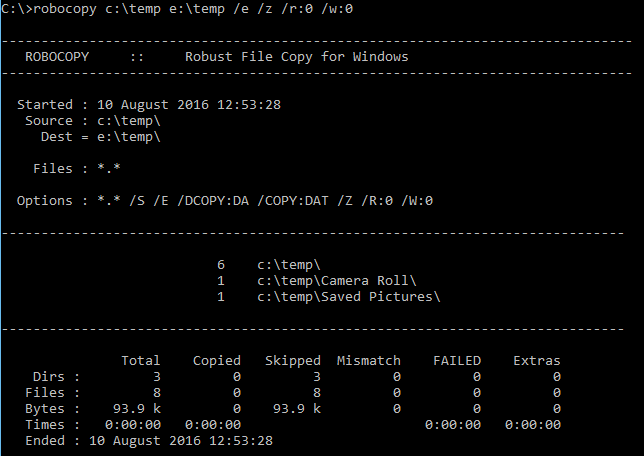
Commonly Used Options
Hopefully the source and destination are self explanatory, although they do need to be the full path of where the files are.
/E – Copies all subdirectories including empty ones.
/Z – Copies files in restartable mode (that is, restarts the copy process from the point of failure).
/COPY:DATS – Copies file information, Data, Attributes, Timestamp, Security
/SEC – Copies ALL NTFS security information
/LOG:<file> – Generates a log file for auditing
/TEE – Logs to file as well as to the console
/R:0 – Number of times to retry copying a locked file
/W:0 – Time inbetween retry attempts
/ETA – Displays an Estimated time remaining to copy each file.
/MT:8 – Uses multi-threading so several files are copied at the same time (Windows 7 and newer)
There are more command line options that are documented by calling robocopy with the /? parameter. Alternatively http://ss64.com/nt/robocopy.html has a handy web page version.