
Windows Update or Microsoft Update
Those of you who regularly use the Windows Update feature of Windows XP may have noticed that Microsoft have now created an enhanced version of the automated update tool. Microsoft Update has the ability to update any Microsoft application and not just Windows. This obviously provides a number of benefits to the small primary school…
Those of you who regularly use the Windows Update feature of Windows XP may have noticed that Microsoft have now created an enhanced version of the automated update tool. Microsoft Update has the ability to update any Microsoft application and not just Windows.
This obviously provides a number of benefits to the small primary school as it means that once the computer is configured to use the Microsoft update, service packs for Office can be downloaded in the background and applied over night. This also solves the problem of knowing which updates need to be downloaded and in which order to install them.
Computers in small schools will be better protected against the nasty bugs that unscrupulous internet hackers can take advantage of. Security glitches and faulty programs can be patched and secured regularly over night. This can reduce the burden on the ICT coordinator or support technicians.
Larger secondary schools can implement a local Windows System Update Server to manage the deployment of the updates and to conserve internet bandwidth.
By default, Windows XP will use the older Microsoft Windows Update service and is available by using the link under the tools menu of Internet Explorer, or by browsing to http://windowsupdate.microsoft.com
The new Microsoft Update service can be installed and configured by browsing to http://update.microsoft.com/ and installing an updated Update client.
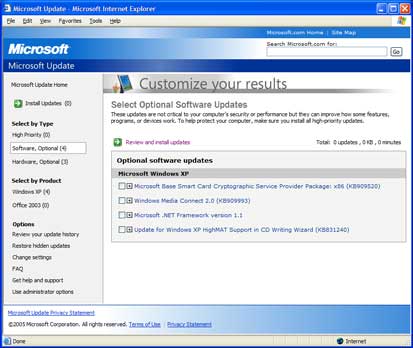
Both of the Update sites work in an identical way, the only difference is that the Microsoft Update provides service packs and updates to other Microsoft products, not just Windows.
I believe that once the computer has been configured to use Microsoft Update, it is not easy to switch back to Windows update, unless the computer is taken back to a restore point.
So which one to use?
If you only have Windows and no other Microsoft applications installed, then stick with the already configured Windows Update. It will provide you with all the updates your computer should need.
If you are rolling out a new suite of computers and have the Microsoft Office applications installed and want to ensure that the latest versions of the applications are installed, then use Microsoft Update.
Microsoft Update works in exactly the same way as the Windows Update so there is nothing new to learn. The benefits of upgrading may be worth the small amount of time it takes to setup.